
Automating Video Content: Using FFmpeg and Remotion to Turn Blog Posts into Shorts
I remember my first attempt at “repurposing” a blog post for social media back in 2023. I spent four hours in Premiere Pro, manually cutting clips, fixing caption timing, and exporting three different aspect ratios. By the time I hit “Upload,” the content felt stale, and I was too exhausted to write the next post.
It was a fantastic learning experience.
Fast forward to April 2026: Content is no longer a manual craft; it is a Programmatic Pipeline. I now transform every blog post into five distinct TikToks, Reels, and Shorts in less than 15 minutes—without ever opening a video editor.
Here is the real, no-BS guide to building a headless text-to-video engine with Remotion and FFmpeg.
What You’ll Learn
In this technical blueprint, we’ll build a production-ready content machine. You’ll discover:
- The “Chunking” Strategy: Using LLMs to extract high-retention hooks
- Remotion 5.0: Building dynamic video layouts with React and Tailwind
- FFmpeg Heavy-Lifting: GPU-accelerated rendering and vertical cropping
- Headless Scale: Deploying your pipeline to AWS Lambda
- Video SEO: Integrating
VideoObjectschema for AI Overview ranking
The 2026 Content Rendering Pipeline
In 2026, we don’t think in “frames”; we think in Components.
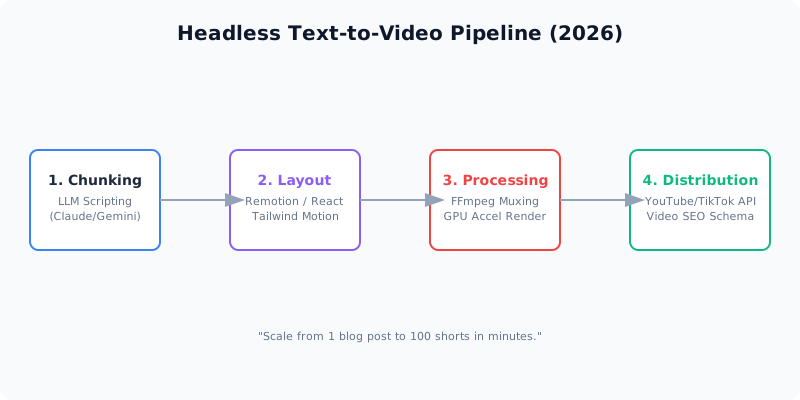
The Logic:
- Extraction: An LLM (Claude/Gemini) reads your blog and identifies the 30-second “viral core.”
- Composition: A Remotion template receives that script and generates the React-based visual timeline.
- Muxing: FFmpeg takes the raw render and high-fidelity TTS audio (ElevenLabs) and merges them.
- Deploy: The final MP4 is pushed to social APIs with automated metadata.
Step 1: Programmatic Visuals with Remotion
Instead of keyframing, we use React state. Here is a simplified component that handles dynamic captions with word-level highlighting—a 2026 requirement for silent-scrollers.
import { useCurrentFrame, useVideoConfig, AbsoluteFill } from 'remotion';

export const DynamicCaption = ({ words }) => {
  const frame = useCurrentFrame();
  const { fps } = useVideoConfig();

  // Logic to find the current word based on frame
  const currentWord = getWordForFrame(frame, fps, words);

  return (
    <AbsoluteFill className="justify-center items-center">
      <div className="text-7xl font-black text-yellow-400 uppercase tracking-tighter shadow-2xl">
        {currentWord}
      </div>
    </AbsoluteFill>
  );
};
Step 2: The FFmpeg Vertical-Crop Command
Even if your source video is 16:9, your automation should handle the “Shorts” conversion instantly. We use FFmpeg’s crop filter for zero-loss vertical centering.
ffmpeg -i landscape_render.mp4 \
  -vf "scale=1080:1920:force_original_aspect_ratio=increase,crop=1080:1920" \
  -c:v h264_nvenc -preset p6 -tune hq \
  short_vertical.mp4
Pro tip: Use
h264_nvencfor 5x faster rendering if you have an NVIDIA GPU. For cloud environments like Lambda, stick tolibx264for maximum compatibility.
Step 3: Information Gain — AI B-Roll Integration
The “secret sauce” of 2026 video automation is the AI B-Roll Fallback. If your blog post is about “Market Liquidations,” your script can trigger an API call to Kling 3.0 to generate a 5-second cinematic clip of a “Financial Storm.”
# Pseudo-code for B-Roll Injection
if "volatility" in script_segment:
    clip_url = kling_api.generate("Cinematic financial market storm, red neon lights")
    remotion_context.inject_clip(clip_url)
Tools and Resources
| Tool | Purpose | Link |
|---|---|---|
| Remotion | React Video Framework | Remotion.dev |
| FFmpeg | Core Transcoding Engine | FFmpeg.org |
| ElevenLabs | AI Voiceover standard | ElevenLabs.io |
Testing Your Implementation
- Verify Word Timing: Ensure your React captions align with the TTS audio down to the millisecond.
- Aspect Ratio Check: Test the render on a real mobile device. If your captions are cut off, your Tailwind containers aren’t responsive.
- Schema Validation: Pipe your video through an SEO validator to ensure Google can read your “Key Moments” timestamps.
Common mistakes:
- Mistake 1: Static layouts. 2026 users have “template blindness.” Use
spring()animations in Remotion to make every element feel alive. - Mistake 2: Ignoring the loop. Ensure your last frame and first frame are identical to trigger the “Infinite Loop” signal in the algorithm.
Next Steps
- Brand Voice Sync: Use your existing Brand Voice Profile to ensure the automated script sounds exactly like your writing.
- Multi-Platform Branching: Build a branch in your pipeline that renders a 9:16 version for TikTok and a 1:1 version for LinkedIn simultaneously.
- Interactive Overlays: Add dynamic QR codes to the end of your videos that link back to the original blog post.
TL;DR
- React is for Video: Use Remotion to build layouts, not Premiere.
- FFmpeg is for Power: Use it to resize, merge, and transcode at scale.
- Scale with Lambda: Don’t render on your laptop; use the cloud.
- SEO is Multimodal: Your video’s transcript must match your blog’s keywords for maximum ranking.
This concludes my 10-part series on 2026 AI-first building. If you’ve enjoyed these guides, subscribe to my newsletter for the next wave of research.
Have a skill recommendation or spotted an error? Reach out on LinkedIn or email me at business@hassanali.site.
Last updated: April 29, 2026