How to Use yt-dlp: The Ultimate 2026 Terminal Guide
I remember my first attempt at downloading a 4K video using the original youtube-dl. I had a vision of building an offline reference library. A week later, I was dealing with broken audio streams, throttled 50kbps download speeds, and endless terminal errors.
It was a fantastic learning experience, but it forced me to find a better way.
Enter yt-dlp. It started as a fork of youtube-dl but has completely absorbed the space. If you are doing any kind of video archiving, dataset scraping, or media extraction in 2026, yt-dlp is the only tool you should be using.
So if you’re thinking about building your own media scripts or just want to download the highest possible quality without shady third-party websites, here’s the real, no-BS guide to how to use yt-dlp.
What You’ll Learn
In this article, you’ll discover:
- How to install
yt-dlpproperly (including the crucial FFmpeg dependency) - The exact commands to download 4K video with merged audio
- How to extract MP3 audio playlists automatically
- Bypassing modern bot detection using browser cookies
- Configuration setups to stop typing the same flags over and over
Prerequisites
Before you run a single command, you need two things on your machine.
- A terminal (PowerShell, macOS Terminal, or Linux Bash)
- FFmpeg: This is non-negotiable. Without FFmpeg,
yt-dlpcannot merge separate high-quality video and audio streams.
Step 1: Installing yt-dlp and FFmpeg
Do not download random .exe files from third-party sites. Use the official package managers for your operating system.
Open your terminal and run the commands for your system:
Windows (using Winget):
winget install yt-dlp
winget install ffmpeg
macOS (using Homebrew):
brew install yt-dlp
brew install ffmpeg
Linux (Ubuntu/Debian):
sudo apt update
sudo apt install yt-dlp ffmpeg
Key takeaway: Always install FFmpeg alongside yt-dlp. If you get an error saying “requested format not available” or you end up with a video file that has no sound, it means FFmpeg is missing from your system PATH.
Step 2: The Basic Download (Maximum Quality)
Once installed, downloading a video in the highest available quality is a one-line command.
yt-dlp "https://www.youtube.com/watch?v=your_video_id"
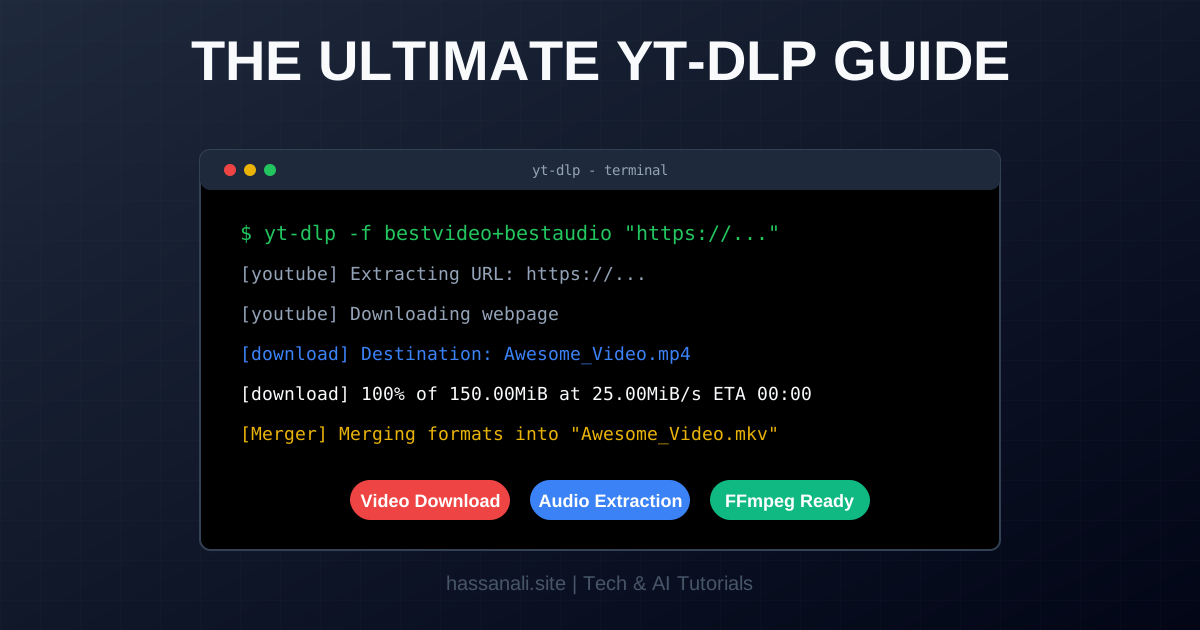
Under the hood, yt-dlp automatically looks for the best video stream (often 4K or 1080p without audio) and the best audio stream, downloads them simultaneously, and uses FFmpeg to mux (merge) them together into a single .mkv or .mp4 file.
Pro tip: Always wrap your URLs in quotes (
""). Some URLs contain special characters like&(common in playlist links) which will break your terminal command if left unquoted.
Step 3: Extracting Audio (MP3 Generation)
If you are archiving podcasts or music, you don’t need the video track. You can instruct yt-dlp to extract only the audio, convert it to an MP3, and discard the heavy video file.
yt-dlp -x --audio-format mp3 "https://www.youtube.com/watch?v=your_video_id"
Here is what these flags mean:
-xor--extract-audio: Tells the tool to convert video files to audio-only files.--audio-format mp3: Specifies the exact output format. You can also useflac,m4a, orwavif you prefer lossless quality.
Step 4: Mastering Formats and Resolutions
Sometimes you don’t want a 15GB 4K file. You just want a reasonable 1080p version. To do this, you first need to see what formats are available.
List all available formats using the -F flag:
yt-dlp -F "https://www.youtube.com/watch?v=your_video_id"
The terminal will print a table of resolution codes. Find the ID code for the resolution you want (for example, 137 is often 1080p video, and 140 is audio). You can download them together using lowercase -f:
yt-dlp -f 137+140 "https://www.youtube.com/watch?v=your_video_id"
Alternatively, use this smart shortcut to dynamically grab the best video that is 1080p or smaller, plus the best audio:
yt-dlp -f "bestvideo[height<=1080]+bestaudio/best" "https://www.youtube.com/watch?v=your_video_id"
Step 5: Bypassing Bot Detection
Platforms aggressively throttle or block CLI tools. If you get an “HTTP Error 403: Forbidden” or a “Sign in to confirm you’re not a bot” error, you need to pass your browser’s cookies.
yt-dlp can read cookies directly from your local browser installation to prove you are a human:
yt-dlp --cookies-from-browser chrome "https://www.youtube.com/watch?v=your_video_id"
(You can replace chrome with firefox, edge, safari, or brave).
Tools and Resources
| Tool | Purpose | Link |
|---|---|---|
| yt-dlp GitHub | Official documentation and releases | GitHub Repository |
| FFmpeg | Required dependency for merging streams | FFmpeg.org |
| Winget | Windows package manager | Microsoft Docs |
Testing Your Implementation
The easiest way to verify your setup is to run a quick update command, followed by a test download.
- Run
yt-dlp -U. If it updates or says it’s on the latest version, the tool is installed correctly. - Run
ffmpeg -version. If it prints a block of text detailing the build configuration, your dependency is ready. - Download a short public video. If it results in a playable file with both sound and video, your muxing pipeline is perfect.
Common mistakes:
- Mistake 1: Forgetting to update. If downloads become incredibly slow (throttled to ~50kbps), YouTube has changed its algorithm. Running
yt-dlp -Ualmost always fixes this. - Mistake 2: Ignoring the PATH variable on manual Windows installs. Always use
wingetto avoid having to edit system variables manually.
Next Steps
Now that you have the terminal commands memorized, here’s what to do next to automate your workflow:
- Master the Sovereign Streaming Stack: If you want to move from downloading to seamless streaming, check out my Cloudstream 3 Guide 2026 to learn how to set up an ad-free, open-source media center on your Android devices.
- Create a
yt-dlp.conffile: Place this file in your user directory. You can add lines like-o "~/Downloads/%(title)s.%(ext)s"so you never have to specify the output path or naming convention again. - Build a Bash/PowerShell Script: Write a simple wrapper script so you can just type
dl [url]instead of the full command. - Explore Playlist Downloads: Try running
yt-dlp -i "PLAYLIST_URL". The-iflag ensures that if one video in the playlist is deleted or private, the tool skips it and continues downloading the rest.
TL;DR
- Install properly: You absolutely need both
yt-dlpandFFmpeginstalled via your system’s package manager. - Best Quality: A simple
yt-dlp "URL"grabs the highest resolution and merges it automatically. - Audio Only: Use
yt-dlp -x --audio-format mp3 "URL"for podcasts and music. - Throttling fixes: If downloads crawl to a halt, run
yt-dlp -Uto update the tool, or use--cookies-from-browser chrometo bypass bot checks.
If you found this useful, subscribe to my newsletter below for more AI research, coding tutorials, and no-BS tech insights.
Have a skill recommendation or spotted an error? Reach out on LinkedIn or email me at business@hassanali.site.
Last updated: April 29, 2026